
Got an older Vinted listing that has stopped getting views? In this article, we’ll cover how to relist on Vinted automatically, through the mobile app, and on the Vinted website.
- How to Relist on Vinted: 3 Main Ways
- How to Relist on Vinted Automatically
- How to Relist on the Vinted Mobile App
- How to Relist on the Vinted Website
- Vinted Relisting FAQ
The 3 Main Ways To Relist On Vinted
There are three main ways to relist an item on Vinted:
| Method | Best for | How it works |
|---|---|---|
| Automatically | Sellers with lots of listings or little time | A relisting tool handles some of the repetitive work |
| Vinted mobile app | Relisting one or two items | Delete the original listing and create a new one |
| Vinted website | Relisting one or two items with Easier copying and editing | Recreate the listing from your laptop or desktop |
Here’s the thing, Vinted doesn’t have an official one tap “relist” button. So if you want to give an old unsold item a fresh start, you’ve got three real options:
- Automatically, using a tool that handles the whole delete and repost process for you
- Manually on the Vinted app, deleting the old listing and creating a new one from your phone
- Manually on the Vinted website, doing the same thing but from your desktop browser
All three get you to the same result, a listing that looks brand new to the algorithm and jumps back to the top of search and the newest items feed. The difference is really just how much of your own time you want to spend doing it.
If you’re only relisting the odd item here and there, doing it by hand on the app or website is totally fine. But if you’ve got a wardrobe full of stock and want to keep everything rotating, that’s where automation earns its keep.
The official Re-upload your item option is mainly used when a buyer cancels an order before you have sent it. In that situation, the button appears inside your conversation with the buyer and restores the original listing details.
How to Relist on Vinted Automatically
Manually copying photos, titles, descriptions, prices and item details gets boring pretty quickly.
This is why some resellers use automation and crosslisting tools.
Copying every title, description, size, and price into your notes app, deleting the listing, then pasting it all back in again takes a solid few minutes per item.
Multiply that by 30 or 50 listings and you’ve lost your whole evening.
This is exactly where an automation tool like SellerAider comes in. Instead of you doing the copy and paste dance for every item, the tool does it for you in one click.
Just select the listings you want to relist!
Here’s what SellerAider handles automatically when you relist:
- Backing up your listing info first, so nothing gets lost if Vinted has a glitch
- Deleting the old listing and recreating it with the same details
- Making a edit to your listing, so Vinted recognizes it as a new listing instead of flagging it as a duplicate
- Relisting multiple items at once, so you can refresh your whole shop instead of one item at a time
That last point is the big one. You can select a bunch of your oldest listings, hit relist, and let the tool work through them in the background while you get on with your day.
It’s the same trick a lot of top Vinted sellers use to stay near the top of search without spending hours glued to their phone.
If you want to give it a go, SellerAider comes with a free trial, no card details needed, so you can test it out here.
SellerAider can also help you crosslist items to other selling platforms. This gives stale inventory another chance to sell without repeatedly reposting it on the same marketplace.
You can learn more about the different types of automation in our guide here
How to Relist on the Vinted Mobile App
Relisting through the Vinted app works well when you only have one or two items to update.
You will be removing the original listing and creating a new one, so save everything you need before pressing delete.
Step 1: Save your listing information
Open the item you want to relist and copy the following information into your phone’s notes app:
- Listing title
- Description
- Brand
- Size
- Condition
- Colour
- Price
- Parcel size
Make sure you still have the original photos saved on your phone!
You could also take new photos if the old ones are dark, blurry or no longer show the item’s current condition properly.
Do not copy photographs from another Vinted member, a retailer or another website. Vinted requires listings to use photos that accurately show the item being sold.
Step 2: Delete the original listing
To delete your listing in the app:
- Tap the Profile icon.
- Open your profile.
- Select the listing you want to relist.
- Open the listing controls.
- Tap Delete and confirm.
Vinted allows sellers to hide, edit or delete active listings through both the app and website.
Deleting the original first is important. Uploading the new version while the original is still active could create a duplicate listing.
Step 3: Create the new listing
Return to the main app screen and tap the Sell button.
Upload your photos and complete each listing field. Vinted allows up to 20 images, so include enough pictures to show the front, back, labels, material and any flaws.
Paste your saved description and check that every detail is still correct.
This is also a good time to improve the listing. You could:
- Choose a clearer cover photo
- Add useful measurements
- Mention the material or fit
- Include any faults or signs of wear
- Make the title more descriptive
- Review the price against similar items
Avoid adding unrelated brands or hashtags to attract extra searches. Vinted may hide listings that use misleading brand names or keywords.
Once everything looks right, tap Upload.
Relisting after a cancelled order
There is a faster option when a buyer purchases your item and then cancels before you send it.
Open the conversation connected to the cancelled sale and look for Re-upload your item. This restores the listing using its original photos and information, which you can then edit before publishing it again.
If the item was returned after a completed sale, make sure it is back in your possession and check its condition before creating another listing.
How to Relist on the Vinted Website
The website method follows the same basic process as the mobile app, but working on a laptop can make copying descriptions and editing longer listings easier.
Step 1: Open and save the old listing
Sign in to Vinted and go to your profile.
Open the item you want to relist, then copy the title and description into a document or notes app. Save the original photos somewhere easy to find.
Check whether any details need updating. A listing that has been sitting around for months may have an old price, weak title or missing measurements.
Step 2: Delete the listing
From your profile:
- Open the listing.
- Select the listing options.
- Click Delete.
- Confirm that you want to remove it.
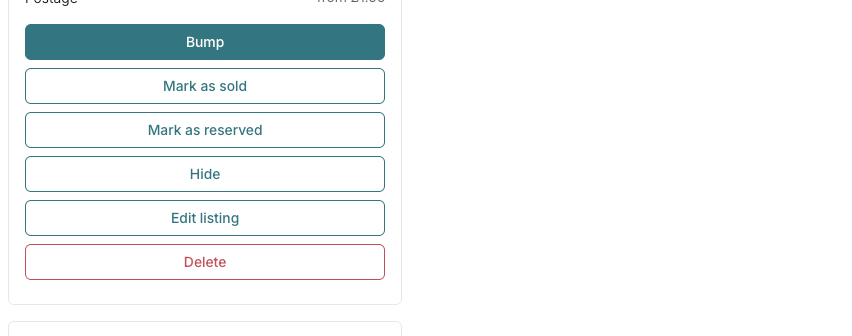
Check your wardrobe afterwards to make sure the original has disappeared before you create the new listing.
Step 3: Click “Sell now”
Click Sell now at the top of the Vinted website.
Upload your item photos and complete the required information, including:
- Title
- Description
- Category
- Brand
- Condition
- Size
- Colour
- Price
- Parcel size
Vinted recommends using clear photos and detailed descriptions to help buyers understand exactly what they are purchasing. Any damage, stains or other flaws should be shown in the photos and mentioned in the description.
Step 4: Review and publish
Read through the listing one more time before publishing it.
Check for spelling mistakes, make sure the category and brand are accurate, and confirm that the photographs show the item’s current condition.
Once you are happy with everything, publish the new listing.
Ways to Refresh a Listing Without Relisting It
Relisting should not be your first move every time an item goes quiet. There are several things you can try without deleting the listing:
- Replace the cover photo with a clearer image
- Improve the title and description
- Add measurements
- Correct the category, size or brand
- Reduce the price
- Send an offer to interested buyers
- Use Vinted’s paid Item Bump feature
- List genuinely new items regularly
Vinted recommends high-quality photos, detailed descriptions, regular uploads and optional promotional features such as Item Bumps to help items receive more visibility.
Our guide to the Vinted algorithm has more tips for improving the visibility of your wardrobe.
Vinted Relisting FAQ
Can you relist an item on Vinted?
You can remove an old listing and create a new one, provided the original is no longer active. However, Vinted’s terms prohibit repeatedly deleting and relisting the same item or relisting multiple items in bulk.
Use relisting occasionally when a listing genuinely needs to be refreshed.
Does Vinted have a relist button?
Vinted has a Re-upload your item button for certain cancelled orders. It appears in the conversation when a buyer cancels before the item has been sent.
There is no general one-tap relist button for ordinary active listings. These normally need to be deleted and recreated manually.
How often should I relist on Vinted?
Vinted does not publish a recommended relisting schedule. Some resellers suggest relisting max 2 times a week if a listing has not gained traction.
Instead of following a weekly relisting routine also consider updating the existing listing, modifying the price or use an official promotional feature.
Can I use the same photos when relisting?
Use photographs that you took yourself and that accurately show the item’s current condition.
Improve the condition of the images and present them better than before.
Will relisting an item help it sell?
A refreshed listing will attract new attention, especially if you improve its photos, title, price or description.
Can SellerAider relist Vinted listings automatically?
SellerAider Grow offers relist, delist and listing-refresh features through its Chrome extension.
Why did Vinted remove my relisted item?
The most likely reasons are that the original listing was still active, the new listing was detected as a duplicate, the description contained misleading keywords or the listing did not follow Vinted’s catalogue rules.
Check your notifications for the exact reason. Make sure there is only one listing for the item and that its photos, category, brand and description are accurate.
What should I do with an item that still will not sell?
Start by improving the existing listing. Try a stronger cover photo, more useful title, measurements and a more competitive price.
You could also crosslist the item to another marketplace automatically using SellerAider
Reaching buyers on eBay, Depop or another selling platform may work better than repeatedly reposting the same item on Vinted.
Final Thoughts
The easiest way to relist one or two Vinted items is through the app or website. Save your listing details, delete the original and create an accurate new listing with improved photos or information.
Automation tools such as SellerAider can reduce repetitive listing work and help manage inventory across marketplaces. Just remember that Vinted’s current rules restrict repeatedly reposting the same item and spamming.
Whichever method you use, focus on making the listing genuinely better. Clear photos, an accurate description and sensible pricing will usually do more for your sales than constantly deleting and uploading the same item.